Software Usage Items
The software usage Items tab displays the recognized installed software information.
The purpose of this tab is to review the software installed on the devices in the business unit and commit it to the compliance workspace. This ensures that the software usage data is correct before it enters the software usage management process. Additional tasks are available to manage the data in this tab.
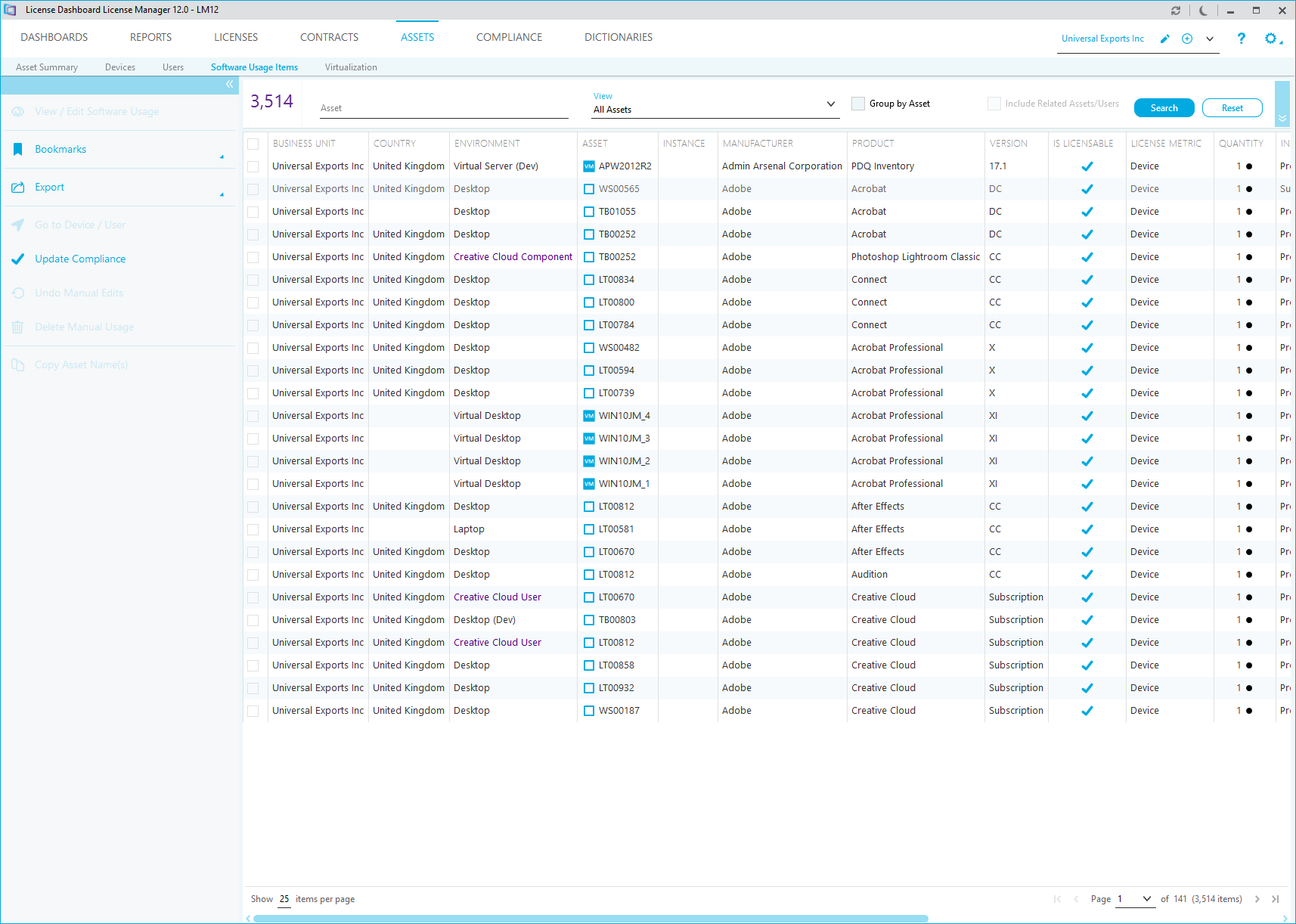
Please Note: When you elect an item that is a suite or component of a suite, the other items in that suite are also highlighted.
The items are color-coded to show the status of each install quantity. Hover the mouse pointer over the spot for more information.
- Black indicates that the quantity is based on the install metric.
- Red indicates that the quantity is based on a default value due to missing install data.
- Blue indicates that the user has manually edited a quantity with a default value
- Fuscha indicates that the user has manually edited a quantity based on the install metric
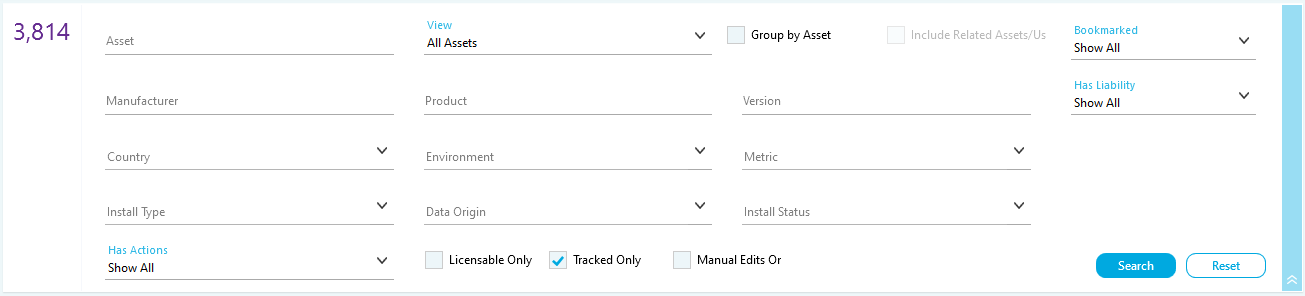
The list can be searched and filtered.
Searches and filters are cumulative. When you search or filter, you can perform a second one without clearing the results to narrow down your results. Click the Reset button to cancel all the current searches and filters and start again.
Search
To search, type in one or more fields and click Search to display the results. You may search using the following fields.
- The Device name.
- The name of the Manufacturer.
- The Product Name.
- The product Version number.
Filters
- Tick a filtering box or select options from the drop down lists. The asset count is updated:
- Click Search.
You may filter using the following fields.
- The Aggregated tick box shows the list of software usage items in an aggregated form.
- The Bookmarked tick box shows only software usage items on devices that have a bookmark.
- The Has Liability tick box shows only software usage items that incur a licensing liability
- The Has Actions tick box shows only software usage items that have been assigned actions.
- The Licensable Only tick box shows only software usage items that are licensable.
- The Tracked Only tick box shows only software usage items that are tracked in the Software Usage workspace.
- The Manual Edits Only tick box shows only software usage items that have been manually edited in this tab
Complex filters can be selected to define the data you want to show:
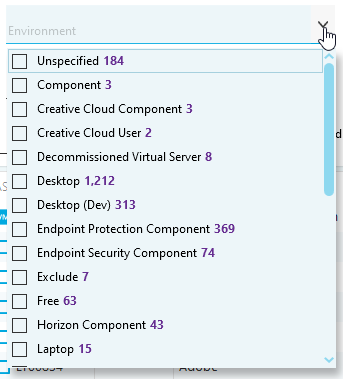
Tick each option you want to include in the filter and click OK.
- The Country where the software usage item is held.
- The Environment that the software usage item operates on.
- The Metric that applies to the software usage item.
- The Install Type for the software usage item. For example a software usage item may be installed as part of a suite.
- The Install Source that was used to discover the software usage item.
- The Install Status for the software usage item. For example, a discovered software usage item may have been created by a rule.