Users
The users tab displays a list of users that have been added to License Manager. This includes users that are live or have been archived. Only live users are displayed by default.
User accounts may be sourced from multiple locations, such as Active Directory, email, Office 365, SAP etc. Each account may have a different user name. When software usage data for user licensed products is imported to License Manager, it will add it to the appropriate user account. If the account does not already exist, it will create a new user.
In License Manager, Active Directory is the primary source for identifying a user. Accounts from other sources are secondary sources. Accounts that have been identified from a secondary source should be matched to the primary Active Directory account for the user.
There are two types of user account:
- Confirmed. This is the primary Active Directory account for the user
- Unconfirmed. This is a user account that has been discovered from a secondary source
The purpose of the users workspace is to:
- Ensure that each user in your organization is accounted for and organized under the correct business unit and location. This will ensure that the software usage is assigned to the correct business unit for management purposes.
- Ensure that multiple accounts for a user have been consolidated into a single account. This will ensure that the appropriate licenses are allocated to a single user for reporting purposes. Please note; secondary user accounts are mapped to primary user accounts in the User Mapping tab in the data cleanse workspace
The users in the list are all currently mapped to the selected business unit.
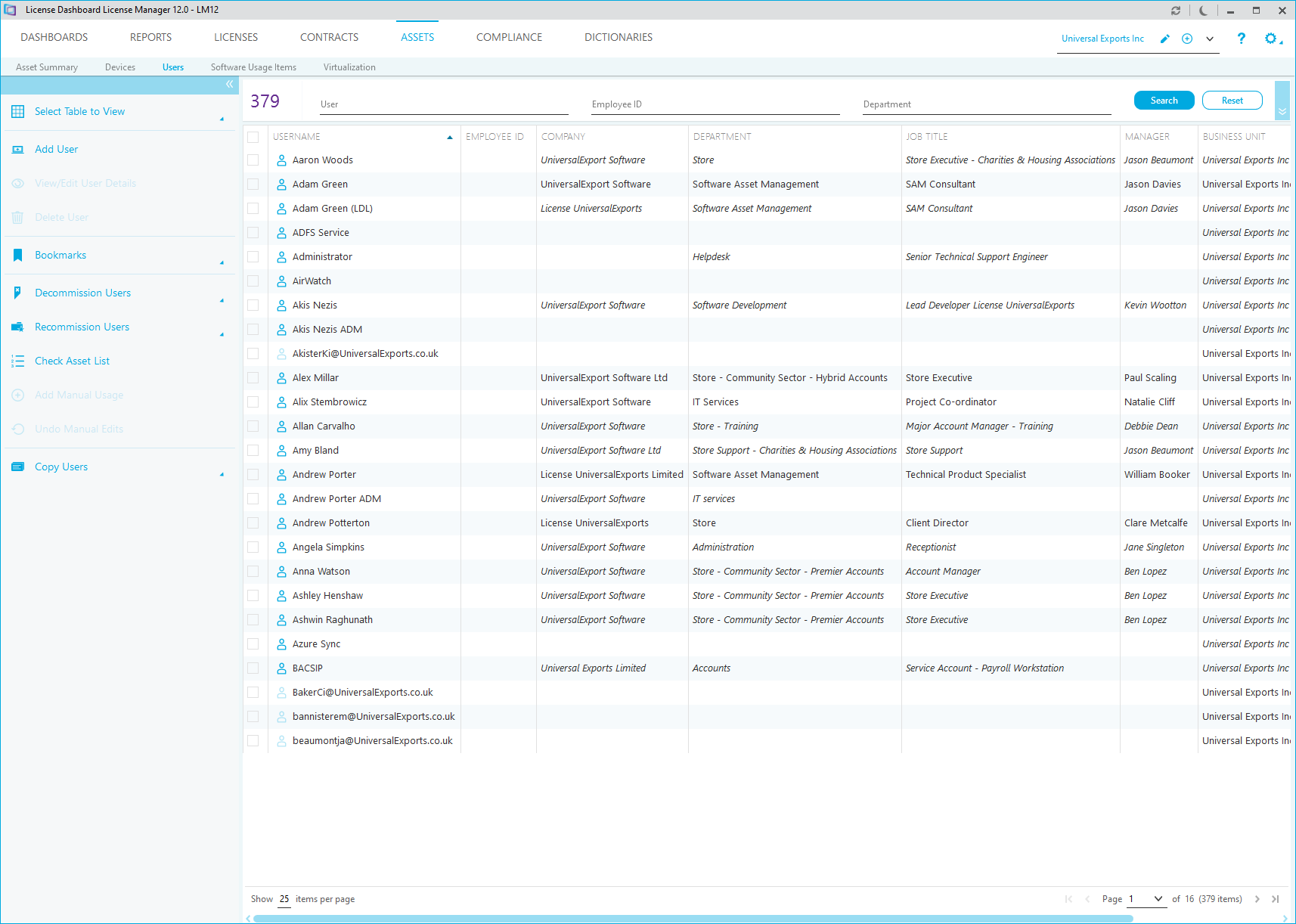
- Unconfirmed user accounts are displayed with an opaque icon
Additional tasks are available to manage the data in this tab.
The list can be searched and filtered.

Searches and filters are cumulative. When you search or filter, you can perform a second one without clearing the results to narrow down your results. Click the Reset button to cancel all the current searches and filters and start again.
Search
To search, type in the text fields and click Search to display the results. The list can be searched by the following fields.
- The User name.
- The Employee ID
- The Department
- The Job Title
Filters
- Tick a filtering box or select options from the drop down lists. The asset count is updated
- Click Search.
You may filter using the following fields.
- The Bookmark tick box shows only users that have a bookmark.
- The Confirmed tick box shows only user accounts that are confirmed
- The Managed tick box shows only users that are marked as managed.
- The Has Installs tick box shows only users that have software installed.
- The Archive Status field allows you to display live, archived or all users that have been added to the workspace
Complex filters can be selected to define the data you want to show:
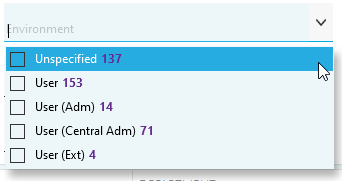
Tick each option you want to include in the filter and click OK.
You may filter using the following fields:
- The Country where the user is located.
- The Location Site where the user is located.
- The Environment that the user operates in.