Virtualization
The virtualization tab is used to match discovered products on virtual devices to their physical host.
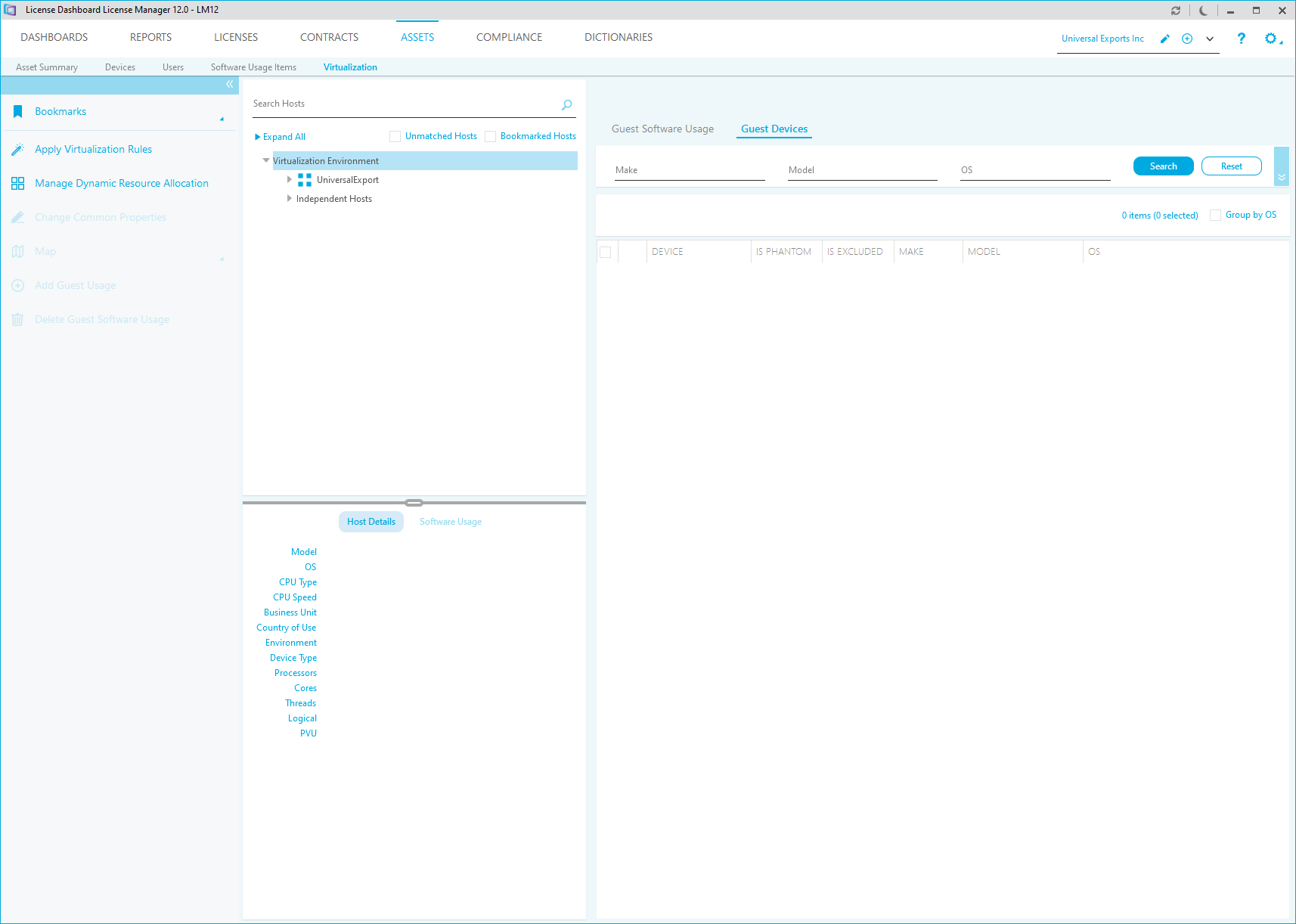
The tab is split into three sections.
- The Virtualization, IBM and Oracle Environments section shows host devices for the selected organization.
- The Host Device section shows details of the selected data center or physical server.
- The Guest section shows guest devices mapped to the host device and software usage on the guest devices.
Additional tasks are available to manage the data in this tab.
Virtualization, IBM and Oracle Environments
The virtualization, IBM and oracle environment section shows host devices for the selected organization in a tree structure.
The host devices are organized in three tabs:
- Virtualization. This shows all data centers for your organization. Clusters are shown under their data center. Physical servers are shown under a cluster or directly under the data center if they are not organized into a cluster. Please note; if a device only contains Oracle data, it is not displayed in the Virtualization tab. It is only displayed in the Oracle tab. Clusters and Data Centers will not be displayed in the Virtualization tab if all of their devices only contain Oracle data. Devices, clusters and data centers with a mix of standard data and Oracle data are displayed in the Virtualization tab. The Oracle tab contains every data center, cluster and device with Oracle data.
-
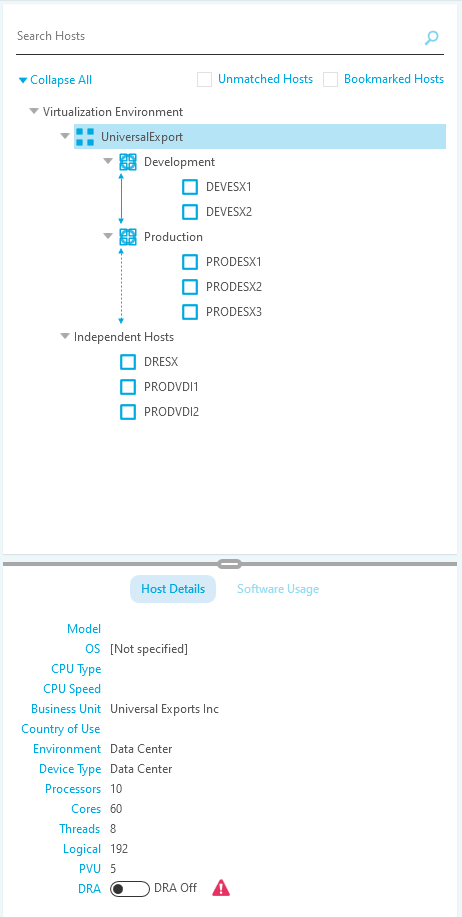
- IBM. This tab is only available if IBM software has been identified on host and virtual devices. This shows all data centers for your organization that have devices containing IBM data. Clusters that have devices with IBM data are shown under their data center. Physical servers with IBM data are shown under a cluster or directly under the data center if they are not organized into a cluster. Virtual servers with IBM data are shown under their physical server.
- Oracle. This tab is only available if Oracle data has been imported via the Oracle Review Lite Processor. This shows all deployments for your organization that have devices containing Oracle data. Oracle deployments to physical servers are displayed in a separate tree from Oracle deployments to virtual servers. Direct deployments on a physical server will be displayed in an 'application instance' > 'physical host' hierarchy - Deployments to virtual servers will be displayed in an 'application instance' > 'virtual server'>'physical host'>'cluster'>'datacenter' hierarchy.
- Please note: Oracle devices that have not been assigned to a host are displayed in the independent hosts tree in the Oracle tab
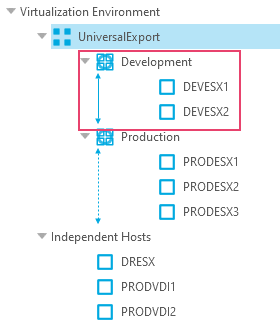
Data centers or clusters with active dynamic resource allocation are marked to show which devices are included:
Click a data center, server, physical device or virtual device to select it. The device details are displayed in the Host Device section. Software usage on the device is displayed below. Click a product to select it.
Tick Synchronize selected manufacturer to filter the guest software usage tab to display software usage items for the selected manufacturer.
Right click a mapped product for additional options.
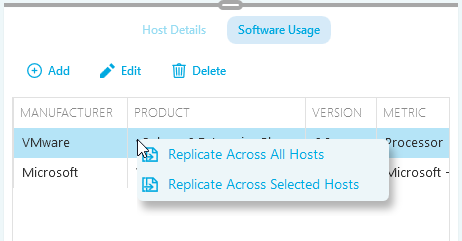
- Click Replicate across all hosts to map the product in the same way for all servers in the data center.
- Click Replicate across selected hosts to map the product in the same way for selected server. A window is displayed, tick to select servers to replicate mapping.
How to Add Software Usage to a Host Device
- Select the host device you want to add software usage to.
- Click Add Host Usage. The add auto-mapping - with mapping window is displayed.
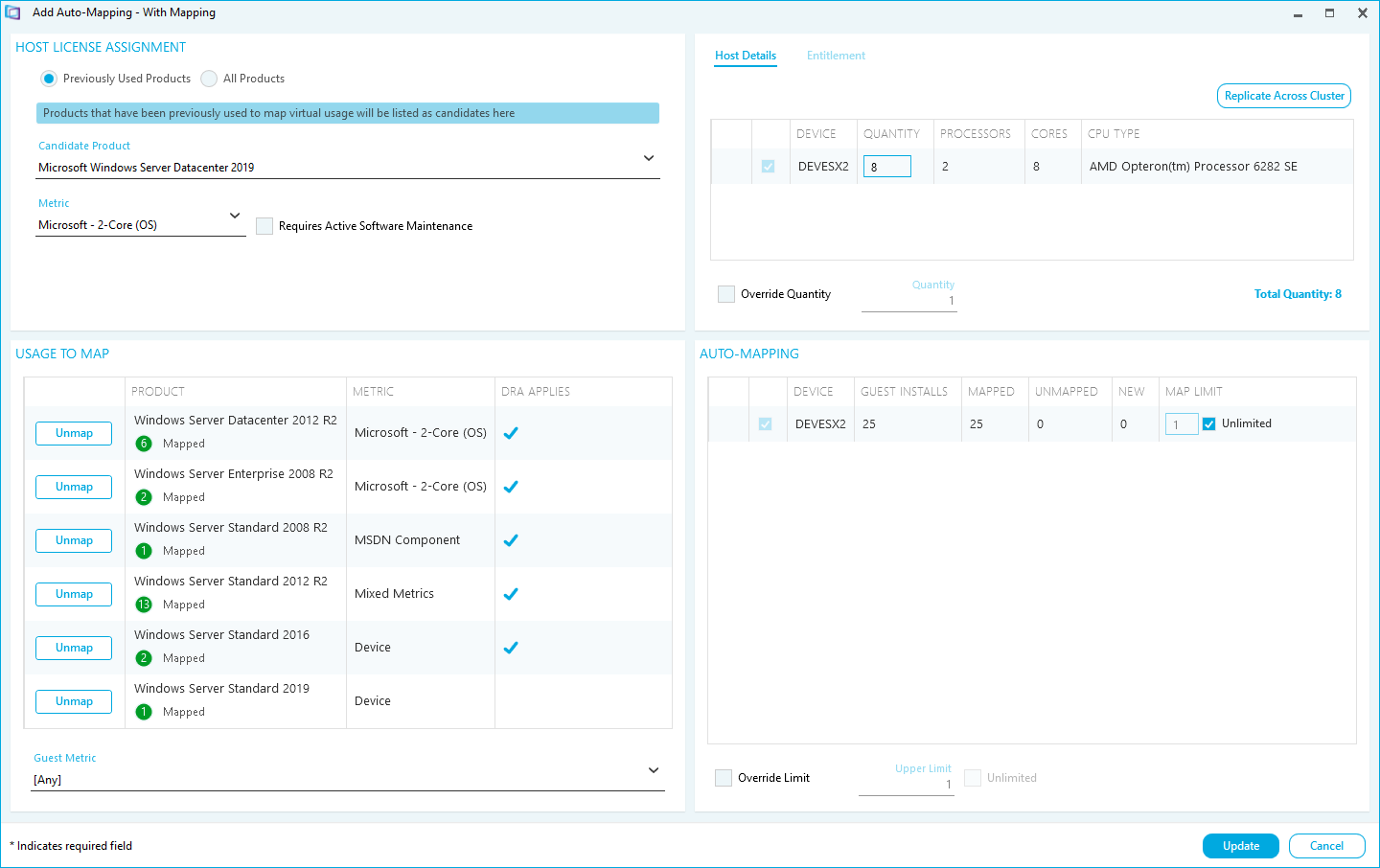
The host license assignment section shows the product license details you want to add to the host device.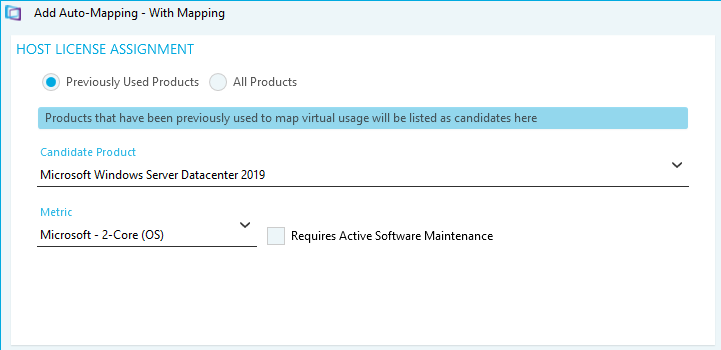
- Select the product filtering option;
- Use Select Candidate Product to search for a product that has previously been used to map guest software usage.
- Use Select Product to search for any product to map guest software usage to.
- Select the product.
- Select the license Metric for the product.
- Tick Requires Active SA to indicate the license requires active software maintenance.
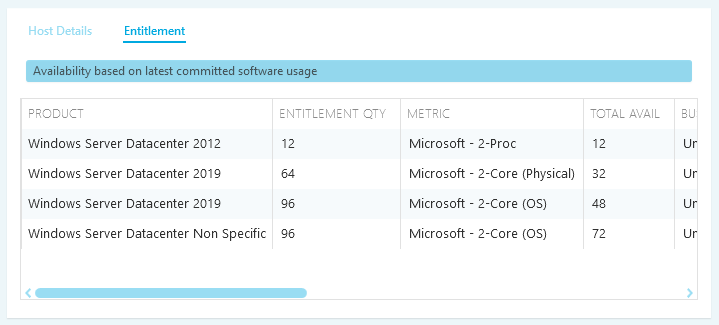
The host details tab shows the physical devices you are adding the license to.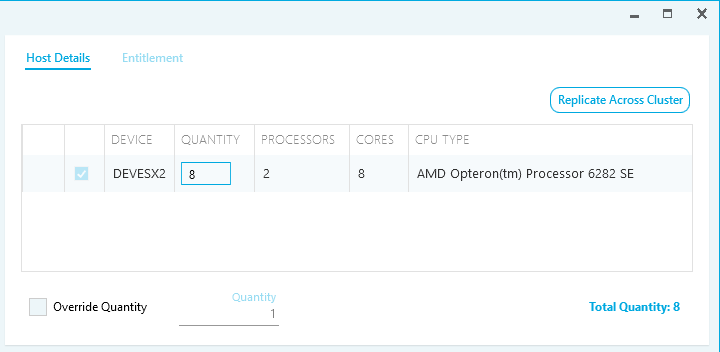
- Assign the quantity of licenses to each host device.
- Click Replicate across cluster to show all other servers in the cluster. Tick each server to add the license to.
- Type a Quantity of licenses to add to each server. Or:
- Tick Override Quantity and type the number of licenses to assign to each server.
The usage to map section shows software usage on guest devices that can be mapped to the license assigned to the host.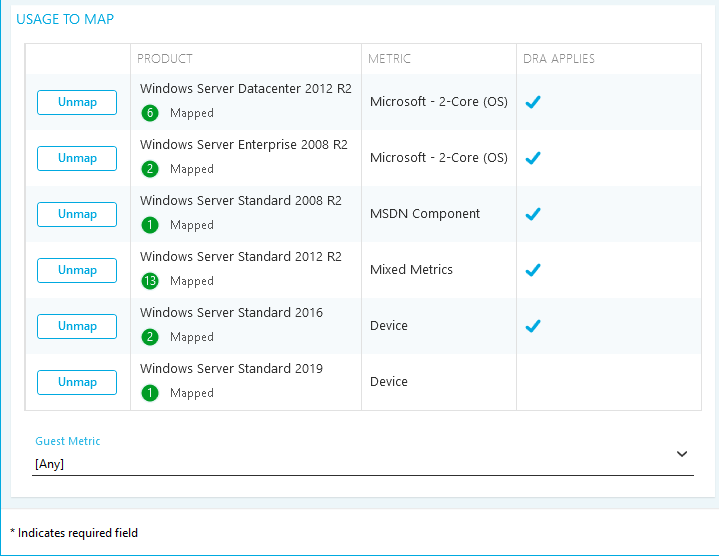
- Click Map against each software usage item you want to map to the host device.
- Select a Guest Metric to assign it to the usage.
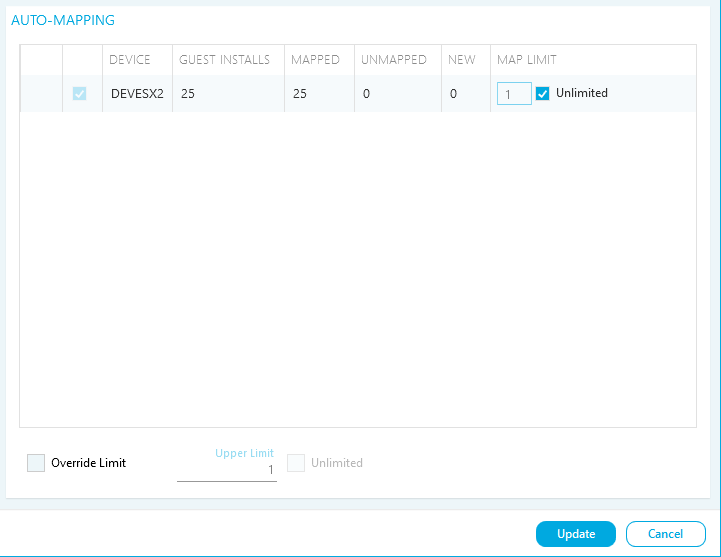
- Tick each device to apply the auto-mapping rule to.
- Input the Map Limit or tick Unlimited to set the number of instances of software usage on guest devices that can be mapped to each server. Or:
- Tick Override limit and input the number or tick Unlimited to apply the same value to all host devices in the list.
- Click Update.
How to Delete Host Usage
- Select the host device you want to delete software usage from
- Select the software usage product you want to delete.
- Click Delete Host Usage. A warning message is displayed.
- Click Yes. The software usage is deleted from the host device.
Host Details
The host details section shows details of the selected host device. Please note: If the device is a data center, it will show the total number of Physical CPUs, Cores, Threads and Logical CPUs on the devices in the data center. The value is marked in red if default values have been used to calculate the total.
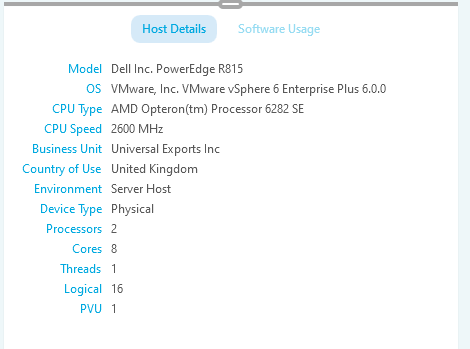
Dynamic resource allocation can be activated for data centers. This indicates that the servers are clustered to share the resources across all servers in the data center. Guest devices and software usage is replicated across all host devices in the cluster when dynamic resource allocation is activated.
Guest
The guest section shows guest devices mapped to the host device and software usage on the guest devices.
The guest lists can be filtered by country of use and environment. The lists can also be filtered to only display Immediate guests, bookmarked and phantom devices. The lists can be searched for a specific device.
Guest Software Usage Tab
The guest software usage tab shows software usage on guest devices that can be mapped to the host device.
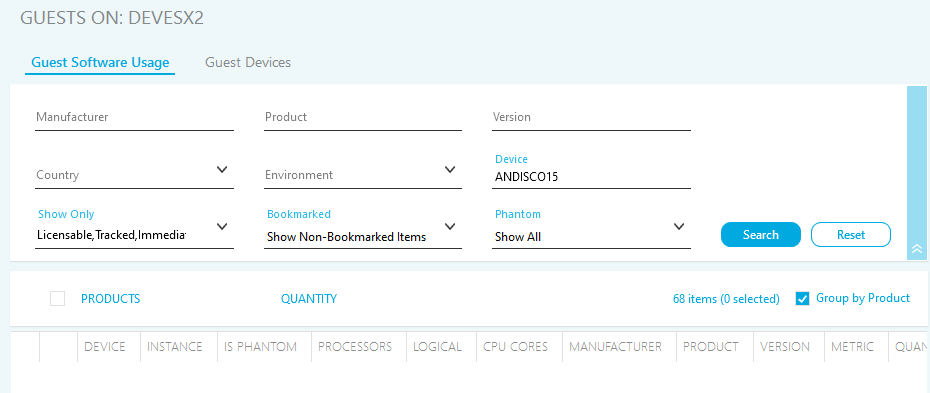
The guest software usage list can be searched by manufacturer, product and product version. The list can be filtered to only display licensable and tracked items. It can also be filtered to show mapped Items and can show mapped guest Items only.
Please note: Oracle application instances are only displayed if you view the device in the Oracle Virtualization tree. This data is only available on virtual or physical devices, not data centers or clusters.
- Click a software usage item to select it
- Click Select Group to select all software usage items for a product
- Click Clear Group to deselect all software usage items for a product
- Click Select All to select all software usage Items in the guest device
- Click Clear Selected to deselect all software usage items
- Tick Group by Product to group software usage by products
- Click Expand All to show all grouped software usage items
- Click Collapse All to hide all grouped software usage items
Right click a device for additional options.
Click Exclude device from selected hosts to exclude the product usage on the device from selected host servers. A window is displayed, tick to select servers to exclude the device from.
Guest Devices Tab
The Guest Devices Tab shows Guest Devices mapped to the Host Device.
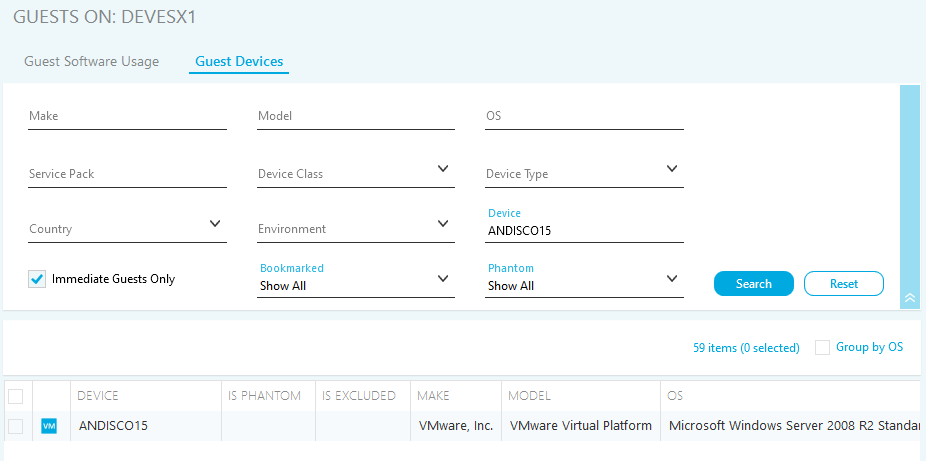
The Guest Devices list can be searched by Make, Model, OS, Service Pack and Device Class. The list can be filtered by Device Type.
Click a Device to select it. Click Select Group to select all Devices for an OS. Click Clear Group to deselect all Devices for an OS. Click Clear Selected to deselect all Devices.
Tick Group by OS to group Devices by Operating System. Click Expand All to show all grouped Devices. Click Collapse All to hide all grouped Devices.
Right click a device for additional options.
- Click Exclude device from selected hosts to exclude the product usage on the device from selected host servers. A window is displayed, tick to select servers to exclude the device from.
- Click Add Usage to add product usage to the guest device. The Add Software Usage Window is displayed (See also: Virtualization.).
- Click Include to include product usage on the device in the virtual environment.
- Click Exclude to exclude product usage on the device in the virtual environment.
- Click Add Bookmarks to bookmark the device (See also: Virtualization.).
- Click Change Common Properties to change the properties of the device (See also: Virtualization.)