Suites Definitions Editor
The Suites Definitions Editor task is used to create and edit suites.
Pre-made suites can be downloaded from the License Dashboard website. You may need to edit the suites to suit your business. For example, if your business uses Microsoft Office, but never uses the Standard Version, you may want to edit the Microsoft Office suite to ignore it.
Click Suites Definitions Editor in the Tasks list. The Suites Editor window is displayed.
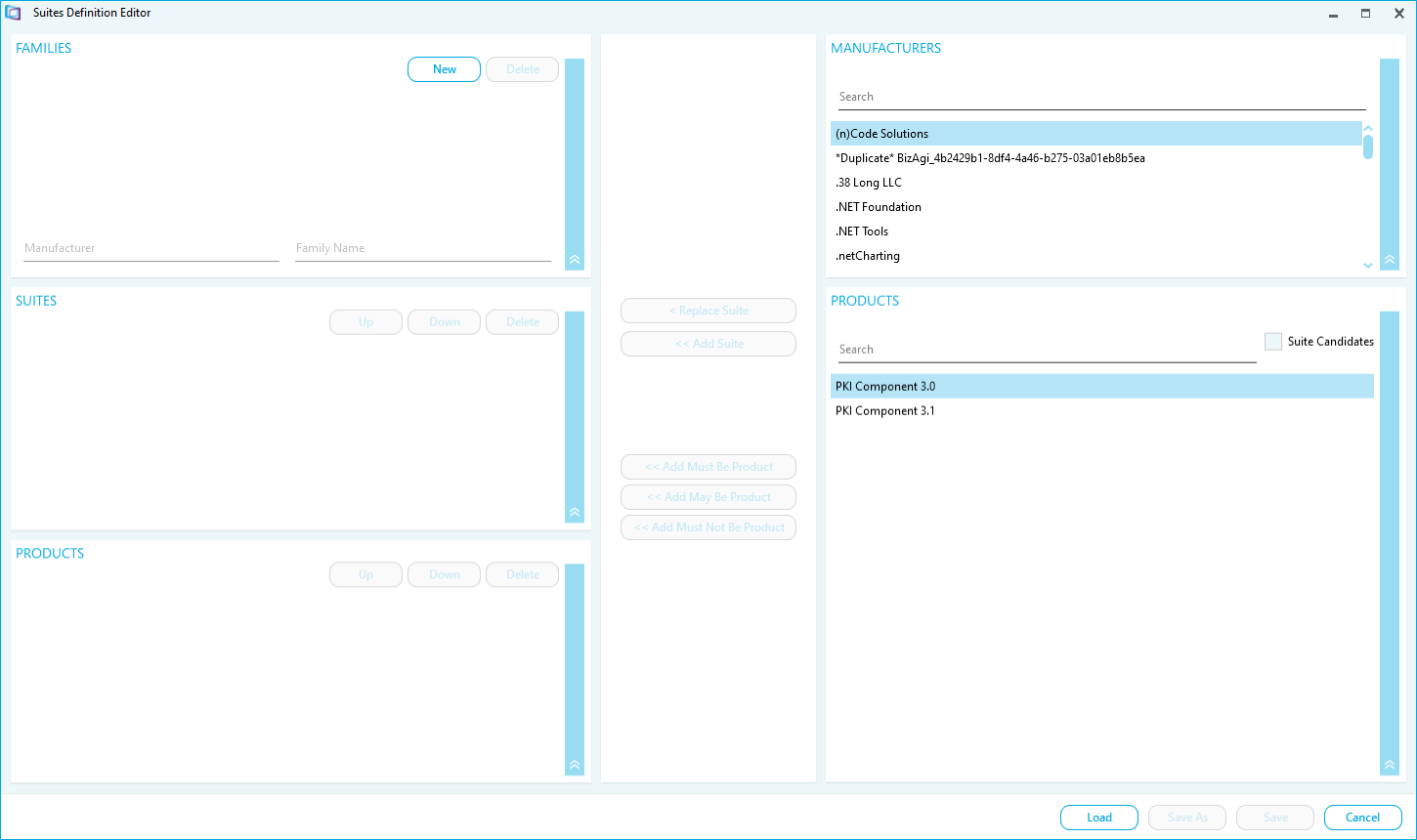
There are three sections in the Suites Editor.
- The Families section is used to create or delete a product family.
- The Suites section shows suites in the selected product family.
- The Product section shows products in the selected suite.
The Manufacturers and Products lists are linked and can be searched to find details of products and suites in the dictionary.
- Click Load to load a pre-saved suite into the Suites Editor.
- Click Save As to save the suite as a new file name.
- Click Save to save changes to the suite.
How to Edit Suites
Use the Families section to set the Suite's name.
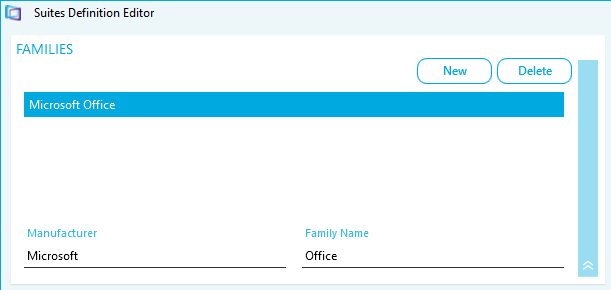
- Select a suite in the list to edit it. Please Note, this will also display the associated Suites in the section below.
- Click Delete to delete a family.
- Type the name of the Manufacturer
- Type the Family Name
- Click New to create a new family
Use the Suites section to set the order of priority for the Suites in the Family. The Suites will be applied to devices based on the order in the list. If the first Suite in the list can be applied to a device, the next Suite below will be ignored.
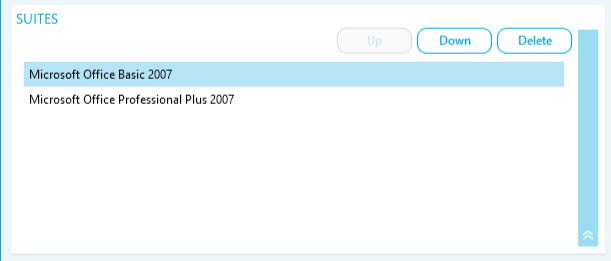
- Click a suite to select it.
- Click Up or Down to re-order the suite in the list
Use the Products section to set the order of priority for the Products rules to allow the Suite to be applied.
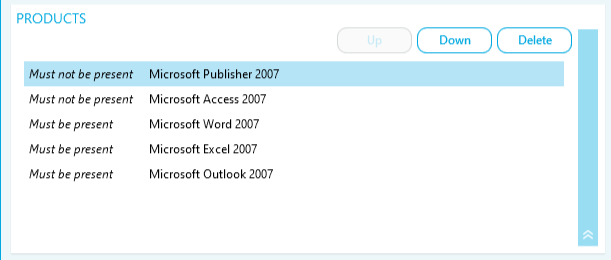
- Click a product to select it.
- Click Up or Down to re-order the product in the list
- Click Delete to remove the product from the list
Use the Manufacturers and Products sections to search for Suites and Products to add to the lists.
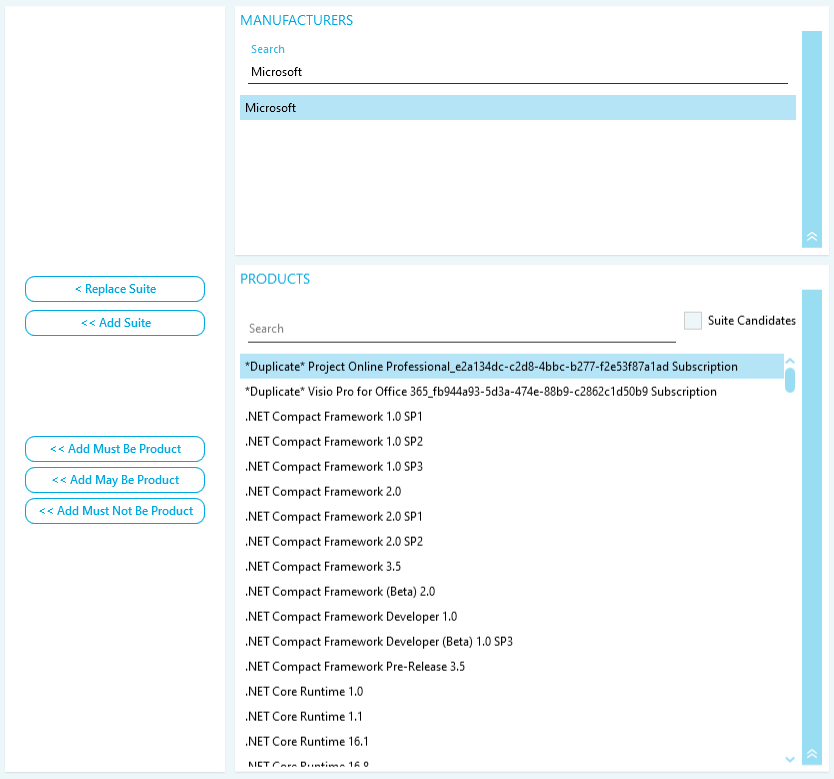
- Use the search filters to find a product for the suite.
- Search for a manufacturer
- Click on a manufacturer to filter the available products.
- Search for a product.
- Tick Suite Candidates to include other suites.
- Click on a suite to select it
- Click Replace Suite to replace the selected suite
- Click Add Suite to add the suite to the family.
- Click on a suite to select it
- Click on a product to select it. When adding a Product to a Suite, there are three rules to choose from.
- Add Must Be Product indicates a product that must be installed for the Suite to apply.
- Add May Be Product indicates a product that may be installed for the Suite to apply.
- Add Must Not Be Product indicates a product that must not be installed for the Suite to apply.
- Tick Suite Candidates to include other suites.
- Search for a manufacturer