How to Organize the compliance workspace
The Software Usage list can be organized in three ways.
- The list can be searched.
- The list can be filtered to limit the items displayed.
- The list can be sorted using the column headings.
Searching the Software Usage List
Use the Search pane to search for items in the Software Usage list. To expand the Search pane options, click the  icon.
icon.
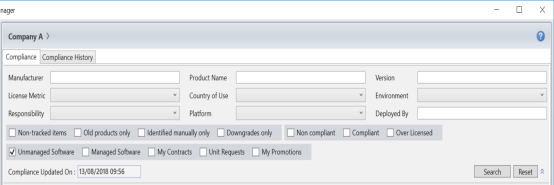
Searches are cumulative. When you perform a Search, you can perform a second Search to narrow down your results. Click the Reset button to cancel all the current searches and filters and start again.
To Search, type in one or more fields and click Search to display the results. You may search by:
- The name of the Manufacturer.
- The Product Name.
- The product Version number.
- The products Deployed By a specific Business Unit.
Filtering the Software Usage List
The list can also be filtered using tick boxes.
The list can be filtered to include products from the other tabs.

The list can be filtered to show specific license compliance.

Additional tick box filters are available.

- Tick Non-tracked items to show installed products that are not tracked by License Manager.
- Tick Old products to show old products that are installed.
- Tick Identified manually only to show installed products that are not identified by License Manager.
- Tick Downgrades only to show products that have been downgraded.
You can also use a drop-down list to filter by the License Metric or Responsibility.
License Metric
The License Metric field allows you to filter by the various metrics that can apply to licenses. For example, a Device filter would show Licenses that apply to a specific number of devices.
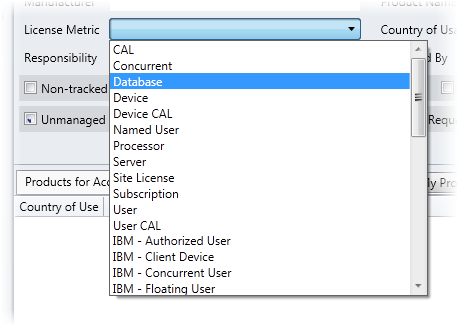
Click the Reset button to cancel all the applied filters and searches.
Country of Usage
The Country of Usage field allows you to filter by the country that the usage applies to.
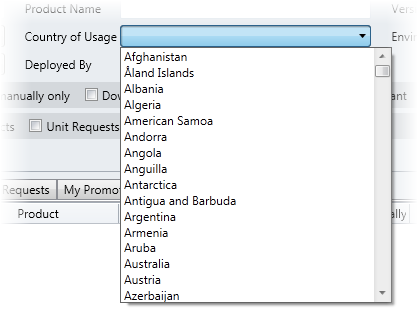
Click the Reset button to cancel all the applied filters and searches.
Environment
The environment field allows you to filter by the Software Usage environments held in the dictionary.
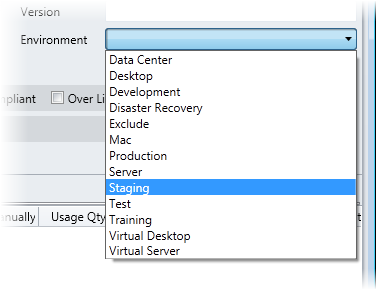
Click the Reset button to cancel all the applied filters and searches.
Responsibility
The Responsibility field allows you to filter by who is responsible for managing the product.
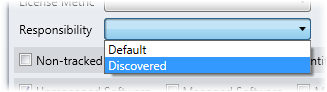
Click the Reset button to cancel all the applied filters and searches.
Sorting the Software Usage Lists
Left-click on any column heading in the workspace pane to sort the data alphabetically or numerically. For example, you may choose to sort by Product or Manufacturer. The first click sorts the data in ascending order, and a second click sorts the data in descending order.