Data Cleanse
After data from a software discovery tool is imported in the assets workspace, the data cleanse workspace displays the extracted raw software data. This data is identified as an EXE file or a MSI signature.
The data cleanse workspace is used to match the EXE and MSI files to the appropriate products in your dictionary. This ensures that the software usage on each asset is correctly identified before the software usage management process begins.
This workspace is also used to map multiple user accounts into a single account. This ensures that all software usage for a user is reported under a single account in License Manager
Please note, the data cleanse workspace may not be available in your version of License Manager. Access to the data cleanse workspace is dependent on your license.
The data cleanse workspace follows a step-by-step process to format the data taken from a software discovery tool:
- Use the EXE Mapping tab to add or match unknown .EXE files to products in the dictionary. The matching process can be replicated across all devices with the same files. This ensures that the software is correctly identified on each device.
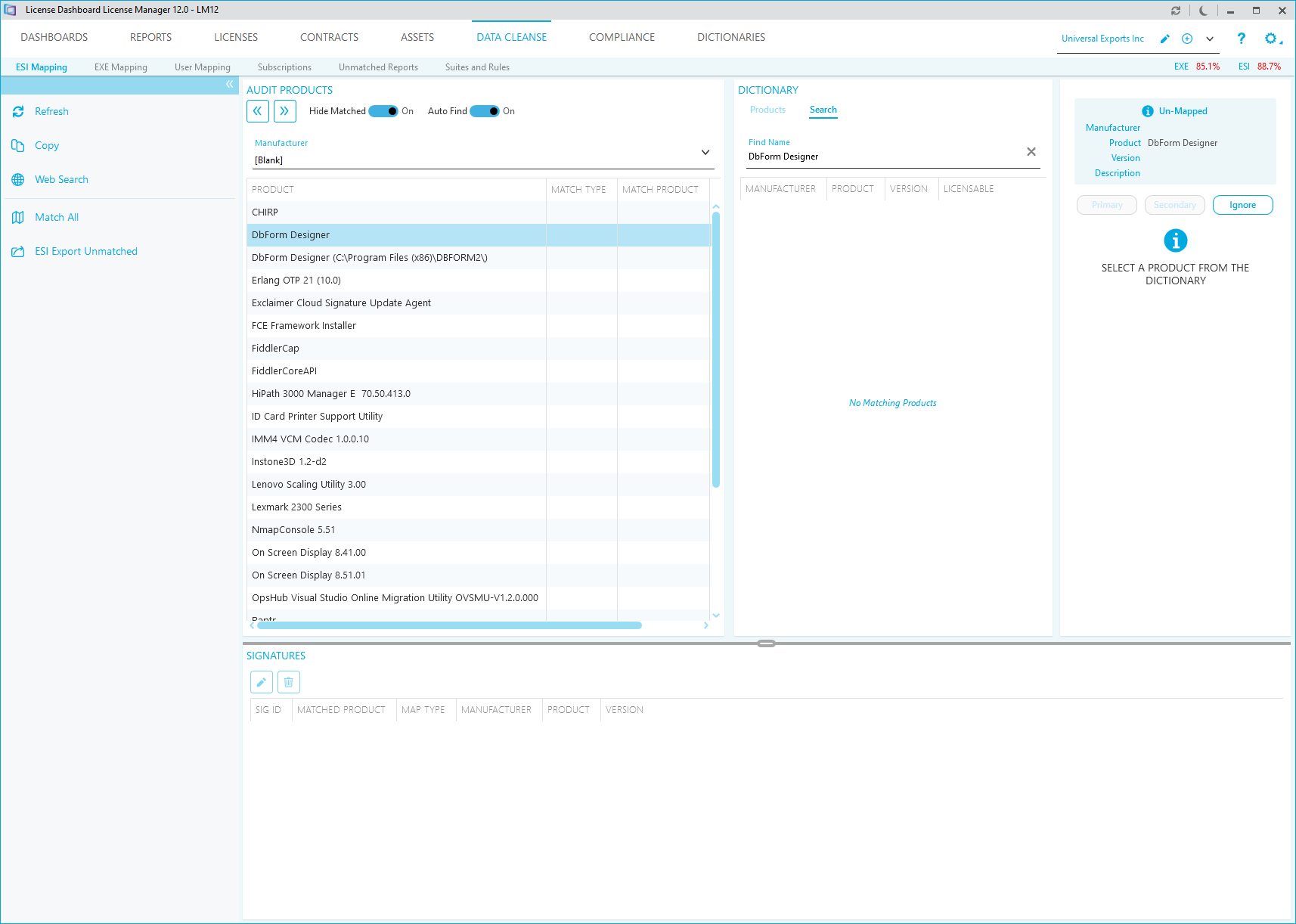
- Use the ESI Mapping tab to add or match unknown ESI signatures to products in the dictionary. The matching process can be replicated across all devices with the same files. This ensures that the software is correctly identified on each device.
- Use the User Mapping tab to match account details from secondary sources to the primary Active Directory account for each user.
- Use the See also: Subscriptions. tab to define the user based licensing subscriptions that your organisation has
- Use the Unmatched Reports tab to review any install data that is not yet identified.
- Use the Suites and Rules tab in the to apply any suites and rules to the data. This ensures that the appropriate application suites are applied to groups of products discovered a single devices. It also ensures that the appropriate product classification is applied to specific software installations.
Please note, the tabs in the data cleanse workspace are only available after data is imported in the assets workspace.
Click Data Cleanse in the workspace navigation pane to open the workspace. The data cleanse workspace defaults to the ESI mapping tab: