Assets
The assets workspace uses data from a software discovery tool to show details of the software installed across an organization. It takes raw hardware and metered data and, working with the data cleanse workspace, formats it for use in the compliance workspace.
The assets workspace is used to import the software usage data for your organization. Once this data has been imported, this workspace allows you to organize your device and user assets to ensure software usage is reported to the correct business unit. Software usage on virtual devices is also organized to ensure virtual software usage is reported against the appropriate physical host.
Once the data has been organized, it is committed to the compliance workspace to allow you to manage license allocations and ensure compliance.
Note: Please note, the assets and data cleanse workspaces may not be available in your version of License Manager. Access to these workspaces is dependent on your license.
Importing and formatting hardware and metered data from a software discovery tool follows a step-by-step process.
- Import the raw extracted data from a software discovery tool.
- Use the Devices tab to organize all computers found by the software discovery tool:
- The devices are organized into business units. This ensures the discovered software usage associated with each device is allocated to the appropriate business unit before the software usage management process is applied.
- Devices are also marked with a primary user. This ensures that user based licenses can be mapped to installed software on the appropriate devices for each user.
- Use the Data Cleanse workspace to match the raw install data is to the appropriate products and application suites. This ensures that the software for each asset is correctly identified. Use the data cleanse workspace to consolidate all user accounts into a single primary account.
- Use the Users tab to organize all users found in Active Directory, subscription or discovery tool. The users are organized into business units. This ensures the discovered software usage associated with each user is allocated to the appropriate business unit before the software usage management process is applied.
- Use the Virtualization tab to match discovered products on virtual devices to their physical host. This ensures that software usage on virtual devices is associated with the appropriate physical host device.
- Use the Software Usage Items tab to review the software usage that has been identified and Commit the data to the compliance workspace. Once the data is committed, the software usage management process can begin. This is performed in the See also: Compliance. workspace.
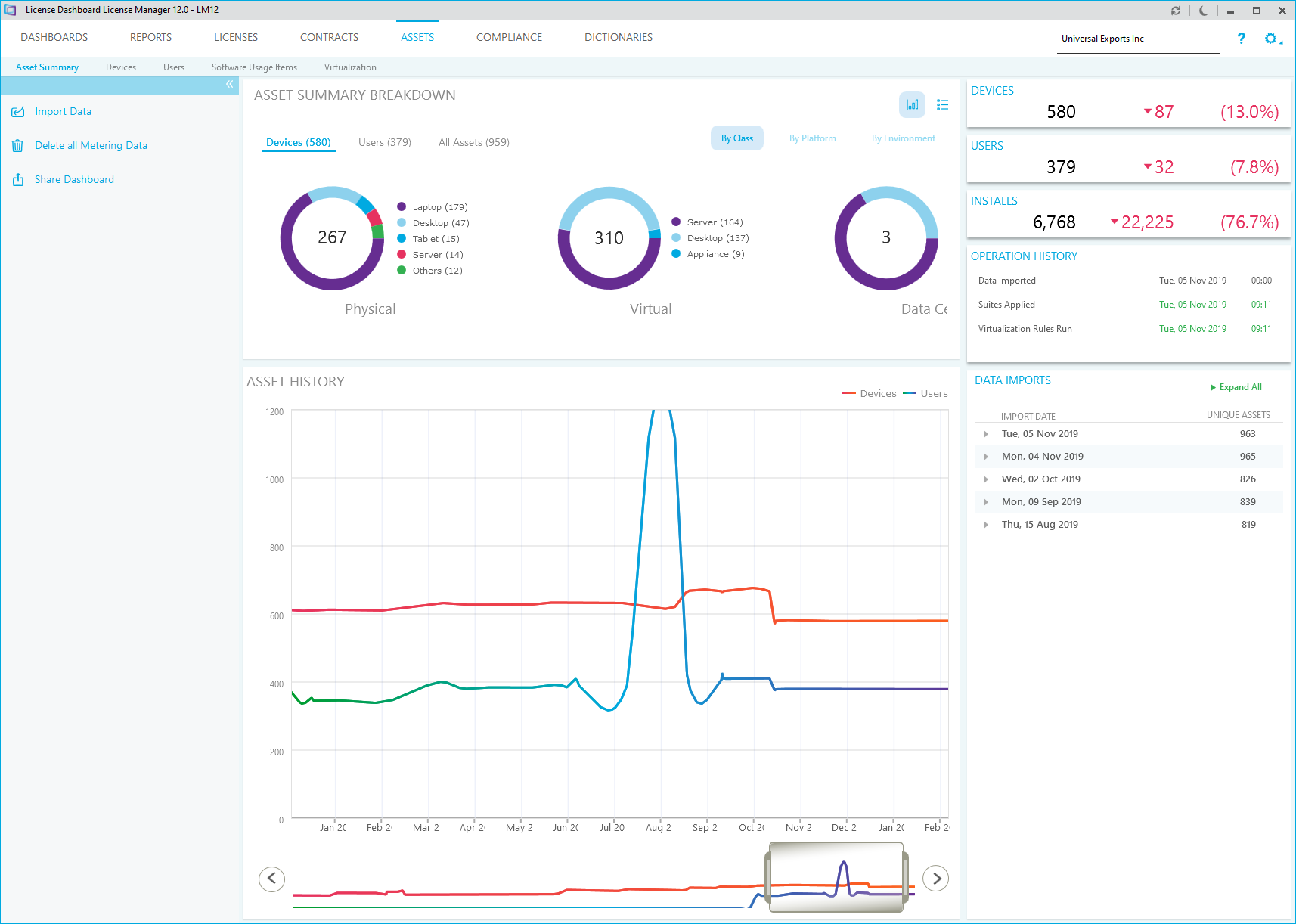
The Asset Summary tab allows you to review the history of your data imports. This gives an overview of the changes to the devices in each business unit.
Click Assets in the workspace navigation pane to open the workspace. The assets workspace defaults to a view showing the asset summary details for the Business Unit you have selected.